How to add a cover to an EPUB

Make an EPUB from a plain text file and the result reads perfectly — the chapters are all there, the table of contents works, the title is right — and then it lands on the shelf as a grey rectangle with the title typed across it. Nothing failed. A converter that starts from .txt or Markdown has no artwork to work with, so the book it builds has none.
To add a cover to an EPUB properly takes one image and, less obviously, one line of XML — and the line matters as much as the picture. An image that is merely inside the file is not a cover; readers show the image the book declares, and ignore everything else. This post walks the whole job on a real book, with a look inside the archive before and after, so you can see exactly what “adding a cover” changes.
Where the coverless books come from
The most common source is conversion from a format that has no pictures to give. Turn a manuscript into a book with a text-to-EPUB converter and everything that was in the source arrives in the output — which is precisely the problem, because a .txt file contains no image at all. The same goes for Markdown, and for many hand-built books: structurally complete, visually anonymous.
The other family of shelf-blankness is different, and worth separating before you reach for a tool. If your book had a cover — it showed in Calibre, or in the store you bought it from — and the image has gone missing on a device, the cover is probably in the file but undeclared. That is a repair, not an addition, and we have taken that failure apart separately. This post is for the book that genuinely has no cover to show.
A cover is one image and one line of XML
An EPUB is a zip of web files with a package document — the OPF — listing everything inside; that index is the heart of what is inside an EPUB. The manifest section of the OPF has one <item> line per file, and a modern reader decides which image is the cover by looking for a single flag on one of those lines: properties="cover-image". Older EPUB 2 files used a separate <meta name="cover"> tag pointing at the image’s id, and good readers still check it as a fallback.
So “adding a cover” is really two writes: the image goes into the archive, and its manifest entry gets the flag. Miss the second write and you have decorated the inside of the book without telling anyone. That is the entire mechanism — no magic, and everything below is just those two writes happening on a real file.
Choosing the artwork
Portrait orientation, at about a 1:1.6 ratio — roughly 1600×2560 pixels is the size that looks sharp on current screens without being wasteful. Smaller works; it just goes soft on a good display. Format is a straightforward split: JPEG for photographic artwork, PNG for flat colour and type.
Be realistic about weight. In a text-only book the cover will usually be the largest single thing in the archive by a wide margin — several times the size of all the chapters put together, as the numbers below show. That is normal and mostly harmless, but if the book has to squeeze under a store’s size limit, compress the artwork before you embed it rather than after.
The run: adding a cover to a real EPUB
The subject is our standing test fixture — a five-chapter book built from plain text by our own converter, which is exactly how coverless books are born. Here is its true structure, 5,183 bytes and not an image in sight:
$ unzip -l specimen.epub   (5,183 bytes total)
       251  META-INF/container.xml
       364  OEBPS/chapter-001.xhtml
       845  OEBPS/chapter-002.xhtml
       905  OEBPS/chapter-003.xhtml
       618  OEBPS/chapter-004.xhtml
       573  OEBPS/chapter-005.xhtml
      1314  OEBPS/content.opf
       682  OEBPS/nav.xhtml
       452  OEBPS/style.css
       986  OEBPS/toc.ncx
        20  mimetype
For the artwork I made a 1600×2560 PNG — 76,491 bytes of title typography. Dropping the book on the cover editor, picking the image and applying it took a few seconds, all in the browser:
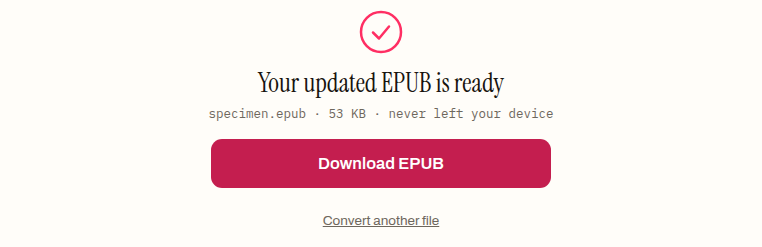
The output is 54,226 bytes. Opening it up shows precisely two changes. The image is in the archive as OEBPS/cover.png, and the package document has grown from 1,314 to 1,406 bytes. Those 92 bytes are the entire “declaration” this post keeps going on about — one new line in the manifest:
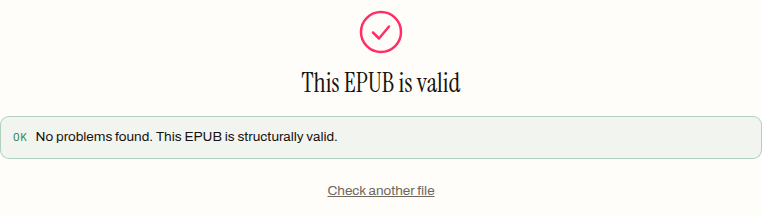
<item id="cover-image" href="cover.png" media-type="image/png" properties="cover-image"/>Every chapter file came through byte-identical. Adding a cover touches nothing you wrote — it is an addition in the strictest sense. And the arithmetic is worth a glance: a 76,491-byte image took the book from 5,183 to 54,226 bytes, so the zip’s compression absorbed some of the PNG, but the cover still outweighs the text of the book by a factor of ten. The validator confirms the result is a well-formed book, not just a bigger one:
Replacing an existing cover overwrites it in place
Run the same tool on a book that already declares a cover and it takes the other branch: instead of adding an entry, it writes the new image over the old one, byte for byte, at the path the manifest already points to. I did this too — handed the freshly covered specimen a 56,593-byte JPEG — and the archive afterwards told the story plainly: the package document was untouched at 1,406 bytes, no new entry appeared, and the new image’s bytes were sitting at the existing OEBPS/cover.png path.
That behaviour is the right trade — the existing manifest entry stays valid and nothing else in the book moves — but it has a consequence worth respecting: the file keeps its old name and declared type. Feed a PNG-covered book a JPEG and the archive ends up with JPEG data under a .png name and an image/png label. Most software reads the actual image data and shrugs, but it is a mismatch you do not need to create. Replace like with like: PNG over PNG, JPEG over JPEG.
The limits: DRM, old readers and stubborn shelves
A DRM-locked book cannot be edited at all. Store DRM encrypts the archive’s contents, and that blocks every edit by design — no cover tool, here or anywhere, can open it.
Ancient reading software may want the legacy tag. The manifest line above is the EPUB 3 declaration, which is what current apps read. Software old enough to understand only the EPUB 2 <meta name="cover"> tag can still draw a blank; if you are targeting genuinely old devices, a desktop editor like Calibre or Sigil can set the legacy tag as well.
A cover image is not a cover page. This job declares an image for shelves and thumbnails; it does not insert a rendered cover page at the front of the reading order. Plenty of books have both. If you want an opening full-page image inside the book too, that is chapter-markup work — again a job for Calibre or Sigil, not a zip-level tool.
Shelves cache. If a reading app has already decided what this book looks like, it may keep showing the old thumbnail until you remove the book and add the corrected file back. That is the reading app’s memory, not your file.
One image, one line
That is the whole of it. The grey rectangle was never a conversion failure — the book just arrived without artwork, and supplying it is a two-write job the tool does in one pass: embed the image, declare it in the manifest. Check the result once with the validator, re-add the book wherever you read, and the shelf finally shows a book instead of a placeholder.
How to add a cover to an EPUB
- 01 Prepare the artworkA portrait JPEG or PNG at roughly 1600×2560 pixels. The format you choose is the format the book keeps, so pick it deliberately.
- 02 Drop the EPUB on the cover editorThe tool reads the manifest and works out whether the book already declares a cover.
- 03 Pick the image and apply itA coverless book gets the image plus a new manifest entry with the cover-image flag; a book with a cover gets the new image written over the old one.
- 04 Download and verifyRun the result through the validator, then re-add the book to your reading app so the shelf rebuilds its thumbnail.
Frequently asked questions
Why does my converted EPUB have no cover?
Because the source had none to give. A converter that starts from plain text or Markdown receives words and structure but no artwork, so the book it builds is complete in every way except the cover. Nothing went wrong in the conversion — there was simply no image to carry across, and supplying one afterwards is the intended workflow.
Does adding a cover change the book's text?
No. In the run for this post, every chapter file came through byte-identical — the only changes in the archive were the new image file itself and the package document, which grew from 1,314 to 1,406 bytes to hold the one manifest line that declares the cover. The words, styling and reading order are untouched.
How much bigger does a cover make the file?
Roughly the size of the image, and the image will usually dwarf the text. Our five-chapter test book went from 5,183 bytes to 54,226 with a 76,491-byte PNG embedded — the archive's compression clawed some of it back, but the cover still outweighs the entire book several times over. A well-compressed JPEG usually costs less than a PNG for photographic artwork.
What happens if the book already has a cover?
The new image is written over the old one in place, so the existing manifest entry stays valid and nothing else in the book moves. The file keeps its original name and declared type inside the archive, which is why it is worth replacing like with like — give a book with a PNG cover a PNG, and a JPEG-covered book a JPEG.
Can I add a cover to a DRM-protected EPUB?
No. A book that carries store DRM is encrypted, and the encryption blocks every edit — cover, metadata or otherwise. That is a property of DRM itself, not of any particular tool: the file cannot be opened for writing without the key, and no honest tool claims otherwise.