How to convert a PDF to an ebook — and when not to

To convert a PDF to an ebook you need something the PDF was never built to provide: structure. An EPUB knows what a chapter is, where a heading starts, which lines belong to the same paragraph. A PDF knows none of that — it remembers where every line of text sits on the page, to the millimetre, and nothing about what any of it means. Conversion in this direction is therefore reconstruction, and reconstruction is lossy. It is still worth doing for most text-first PDFs. But it pays to know what you will get before you start, so this guide runs the conversion on a real file and shows exactly what came out the other side — including the parts that did not survive.
First, find out which of the three PDFs you have
“PDF” covers three different kinds of file, and only one of them converts well.
A text PDF — exported from Word, LaTeX, a publishing tool, or another ebook — carries real text you can select and copy in any viewer. This is the convertible kind, and most PDFs of books, papers and manuals are this kind.
A scanned PDF is photographs of paper pages wrapped in a PDF container. It looks identical on screen, but try to select a sentence and you will drag a box across the whole page instead. There is no text inside to extract, and no converter can invent it; we reproduce below exactly what happens when you try.
A designed PDF — a cookbook, a textbook full of figures, a comic, a manual where every page is a composition — technically converts, but what makes it good is the layout, and the layout is precisely what conversion removes. More on that in the honest edges below.
The ten-second test: open the PDF, try to select text. Selectable text means convertible; a stubborn blue box means scan.
What converting a PDF to an ebook actually loses
The mechanism decides everything, so here it is plainly. Inside a text PDF, each page is a list of positioned text runs — put these glyphs at this x,y. Our converter reads those runs, groups them into lines by their vertical position, and joins lines into paragraphs, treating a line that ends in sentence-final punctuation as a likely paragraph boundary. What it will not do is guess where your chapters are: the text stream marks no headings, so the converter groups every ten pages into one section and names it honestly — “Pages 1–10” — rather than inventing chapter breaks the source never declared.
We measured the loss directly by round-tripping our own specimen book: the 5,183-byte, five-chapter EPUB this site uses for every demonstration went through our EPUB to PDF converter (5,906 bytes, five pages), and that PDF went back the other way:
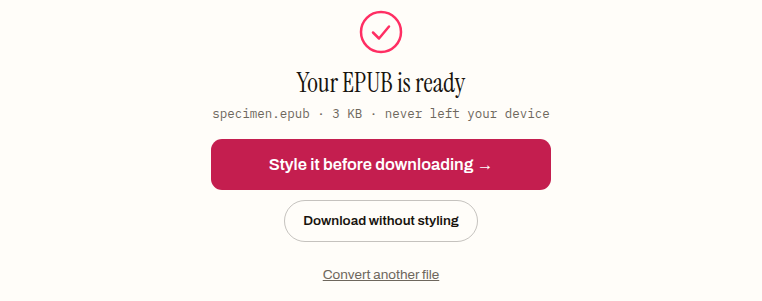
The output opens fine and reads fine. Its structure tells the real story:
$ unzip -l specimen-from-pdf.epub   (3,453 bytes total)
       251  META-INF/container.xml
      1987  OEBPS/chapter-001.xhtml
       866  OEBPS/content.opf
       375  OEBPS/nav.xhtml
       452  OEBPS/style.css
       403  OEBPS/toc.ncx
        20  mimetype
Five chapters went in; one section came out, titled “Pages 1–5”, and the table of contents now has a single entry. The chapter headings survived only as ordinary paragraphs — “CHAPTER 1: WHAT THIS FILE IS” is now plain text glued to the sentence that follows it. The page numbers the PDF printed at the bottom of each page leaked into the text as stray one-character paragraphs. And the book’s title became “Specimen”, inferred from the filename, with the author listed as Unknown — the PDF carried neither.
None of this is a malfunction. It is what reconstruction from a format that stores positions, not meaning, honestly yields. The repairs — retitling sections, deleting stray page numbers — are covered in our guide to PDF to EPUB formatting problems, which exists because every conversion in this direction needs some of them.
The scanned-PDF wall
To show the second kind of PDF failing, we built one: a comic page image printed to PDF, 56,132 bytes of picture and not one character of text — structurally the same thing as a scanned book page. Dropped on the converter:
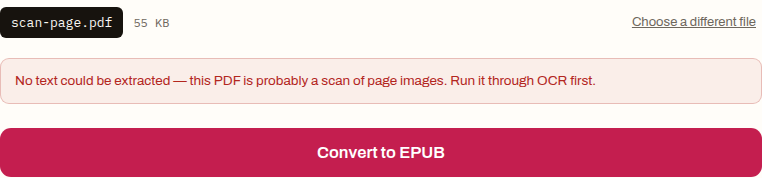
The error is the tool telling the truth: No text could be extracted — this PDF is probably a scan of page images. Run it through OCR first. An OCR tool reads the photographs and writes a text layer into the PDF; convert that output instead and the normal path applies. What you should not do is hunt for a converter that claims to handle scans directly — anything that turns images into text is doing OCR, whatever the marketing calls it, and dedicated OCR tools do it with proofreading support you will need, because recognition is never perfect.
Running the conversion
For the convertible kind, the procedure is short:
- Check the text selects, as above. Two seconds now saves the error later.
- Drop the PDF on the converter and press convert. It runs entirely in your browser — the file is not uploaded anywhere. Because the output is a reflowable EPUB, the done panel offers to style it before downloading; take the styling step if you want to pick the typeface and spacing, or download as-is.
- Read the first section before you shelve the book. The losses above are predictable, so two minutes of reading tells you which ones this PDF suffered: glued headings, stray page numbers, paragraphs merged where a line happened to end without punctuation.
- Fix the metadata and validate. The title was inferred from the filename and the author is probably Unknown; set both in the metadata editor, then run the result through the EPUB validator so the file that goes onto your reader is structurally sound.
If the destination is a Kindle, convert to EPUB first and then follow our Send to Kindle guide — the EPUB you just made is exactly the file that route wants.
When to leave it as a PDF
Being realistic about this direction of travel:
- Images do not carry over. The output is text only. As a worst case we converted a two-page comic PDF — 121,379 bytes, built from a comic archive with our own tools — and got a 2,610-byte EPUB whose entire readable content was one stray page number. Both images were simply gone. A photography book, a graphic novel, a slide deck — converting these this way produces a text skeleton of a visual book.
- Tables and multi-column layouts come out scrambled. The converter joins text by vertical position, so two columns of a table land in one line of prose. A PDF that is mostly tables is better kept as a PDF.
- Careful typesetting is spent. Fonts, margins, drop caps, pull quotes — all of it is position data, and position data is what conversion discards.
- A PDF you will print should stay a PDF. Print wants fixed pages; that is the one thing PDF does better than every ebook format.
The conversion earns its keep on text: novels, reports, papers, manuals you read front to back. There, reflow beats fidelity, and the losses are cheap to repair.
A realistic way to think about the result
Treat the converted EPUB as a good reading copy, not a restoration of the original. The words are all there; the structure is approximate; ten minutes with the section titles and the metadata makes it a book you can live with on any screen. When you have the PDF in hand, the PDF to EPUB converter will show you what your particular file yields faster than any guide can predict it — the whole run happens in your browser, and the first section of the output tells you the rest.
How to convert a PDF to an ebook
- 01 Check the PDF has selectable textOpen it in any viewer and try to select a sentence. If the text highlights, it can be converted; if your selection drags a blue box across the whole page, it is a scan and needs OCR first.
- 02 Drop it on the PDF to EPUB converterThe conversion runs in your browser and the file never leaves your device. A few seconds later the done panel names the output and offers to style it before downloading.
- 03 Read the first section of the outputLook for glued-together headings, stray page numbers and merged paragraphs — the losses are predictable, and two minutes of reading tells you whether this PDF converted well or badly.
- 04 Fix the metadata and validateThe title is inferred and the author is usually Unknown, so set both in the metadata editor, then run the file through the validator before loading it onto a reader.
Frequently asked questions
Why does my converted EPUB have sections called Pages 1–10 instead of chapters?
Because the PDF never said where its chapters were. A PDF marks no headings — just lines of positioned text — so the converter refuses to guess and instead groups every ten pages into one section named after them. Retitling those sections by hand is normal finishing work, not a sign the conversion failed.
Can I convert a scanned PDF to an ebook without OCR?
No. A scan stores photographs of pages, and there is no text in a photograph to extract — our converter stops with an error saying exactly that rather than producing an empty book. Run the scan through an OCR tool first to add a text layer, then convert the result.
Do the images in a PDF survive the conversion?
No — the output is text only. We converted a 121,379-byte two-page comic PDF while writing this post and got a 2,610-byte EPUB whose entire readable content was one stray page number; both images were gone. If the pictures are the point of the book, converting it to EPUB this way is the wrong move.
Why is the EPUB smaller than the PDF it came from?
A PDF carries drawing instructions for every page — where each line sits, which fonts to use — and the conversion throws all of that away, keeping only the words. Our 5,906-byte test PDF became a 3,453-byte EPUB. A PDF full of images shrinks even harder, because the images are dropped entirely.
Is an EPUB actually better than a PDF for reading on a phone?
For text, yes, and it is not close. An EPUB re-wraps its lines to fit whatever screen and text size you choose, while a PDF shows the same fixed page everywhere, which on a phone means zooming and panning. That reflow is the whole reason to convert — and the reason not to bother when the PDF is mostly diagrams or layout.