How to convert an EPUB to Pages

Double-click an EPUB expecting Apple Pages to open it, and nothing happens. Pages does not show it in the Open dialog, and dragging the file onto the Pages icon is ignored. This is not a broken download or a corrupt book — Pages simply does not read the EPUB format, and never has.
The fix is a two-hop route: turn the EPUB into a Word document first, then open that in Pages. Pages has imported Word files for as long as it has existed, so the moment the book is a .docx it opens without complaint. The only real question is what makes it through the conversion — and that depends entirely on what your book was made of.
Why Pages won’t open an EPUB
An EPUB is not a document in the sense a word processor understands. Open one up — it is a ZIP archive, and inside are web pages: each chapter an XHTML file, the styling in a separate stylesheet, images in their own folder, and a package file listing the reading order. It is, structurally, a small website that a reading app assembles on the fly. That is exactly what is inside an EPUB, and it is a world away from a .docx, which packs text, styles and images into one editable word-processing container.
Pages speaks the second language, not the first. So the job is not to “open” the EPUB — it is to translate the book into the word-processor world, and a converter that reads the chapter markup and rebuilds it as Word paragraphs is the bridge.
The route that works: EPUB to Word, then Word into Pages
Three steps, and only the first needs a tool:
- Run the EPUB through the EPUB-to-Word converter. Drop the file on the page; it reads every chapter and writes a single Word document. Nothing is uploaded — the conversion happens in your browser.
- Open the downloaded
.docxin Pages (File → Open, or just double-click it now that it is a Word file). - Pages imports it and, if it asks, offers to keep a copy in its own format. Save it as a Pages document and you are editing the book.
To show what the first step actually produces, here is our five-chapter specimen book run through the converter for this post. The input is a 5,183-byte EPUB; the tool returns a 9,452-byte Word document:
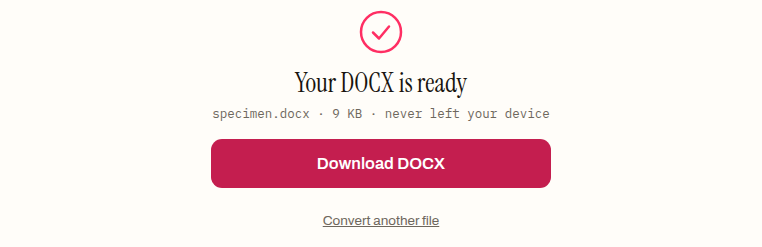
Unzip that Word file and the translation is visible. The five chapter titles have become Word Heading 1 styles — so Pages shows them in its outline and table of contents, not as anonymous bold lines. The body paragraphs are there in full, and the book”s five-item list came across as a real bulleted list. The converter maps structure to structure: headings to headings, quotes to indented italic paragraphs, list items to bullets. That is the part worth having, because it is the part Pages can keep working with.
What survives the trip, and what doesn”t
A translation between two formats this different is never lossless, and it is more honest to say so up front than to let you find out in Pages.
What carries over: the text, the heading hierarchy, paragraph breaks, block quotes and lists. For a novel, an essay collection, a report — anything that is mostly words with a clear structure — the result opens in Pages as a normal, editable manuscript.
What does not: images, and the book”s own typography. The converter is text-and-structure only; it drops images rather than mangling them into the wrong place. You can watch that happen. Our comic-book fixture, comic.epub, is 99,804 bytes, and two PNG page scans — 56,542 and 47,365 bytes — are almost the entire file. Convert it to Word and you get an 8,503-byte document with no image inside it at all. The pages were the book; in Word, they are gone.
The lesson is not that the converter is weak — a picture-driven book has nothing for a word processor to hold. If your EPUB is a comic, a fixed-layout children”s book or a heavily illustrated cookbook, EPUB-to-Word is the wrong move, and so is Pages. Fonts, spacing and margins go too: those lived in the EPUB”s stylesheet, and Pages applies its own document styles instead. You get the words in a clean Pages template, not a facsimile of the ebook.
If all you actually need is the wording — to quote a passage, or paste into an email — skip Word and convert the book to plain text instead.
When not to convert at all
Often the real goal is just to read the book, and Pages was the app nearest to hand. If so, do not convert anything: on a Mac, Apple Books reads EPUB natively — add the file and it opens intact, images and layout and all. Convert to Pages only when you genuinely need to edit or reuse the text.
The reverse trip is worth knowing too. Going the other way — a Word or Pages document into an EPUB — keeps far more, because you are moving from a richer format to the ebook rather than squeezing one out. If you edit in Pages and want an EPUB back, export to Word and turn that Word document into an EPUB.
So: Pages will not open your EPUB because it was never built to, and no setting changes that. Send the book through the EPUB-to-Word converter, open the .docx in Pages, and you have an editable manuscript in under a minute — as long as the book was words, and you were not counting on the pictures.
How to convert an EPUB to Pages
- 01 Convert the EPUB to a Word documentRun the book through the EPUB-to-Word converter: drop the file on the page and it reads every chapter and writes a single .docx. Nothing is uploaded — the conversion happens in your browser.
- 02 Open the downloaded .docx in PagesFile → Open, or just double-click it now that it is a Word file — Pages has imported Word documents for as long as it has existed.
- 03 Save it as a Pages documentPages imports the file and, if it asks, offers to keep a copy in its own format. Save it and you are editing the book.
Frequently asked questions
Do images survive converting an EPUB to Pages?
No. The converter is text-and-structure only, and it drops images rather than mangling them into the wrong place. The comic fixture in this post makes the point starkly: a 99,804-byte EPUB that was almost entirely two PNG page scans came out as an 8,503-byte Word document with no image inside. Text, headings, quotes and lists are what carry over.
Do I need Microsoft Word installed for this to work?
No. The EPUB-to-Word conversion runs in your browser, and Pages opens the resulting .docx directly — Word itself is never involved. The .docx is simply the interchange format both worlds understand, which is what makes it the reliable bridge between an ebook and Pages.
I only want to read the book on my Mac — should I convert it?
No. Apple Books reads EPUB natively on a Mac: add the file and it opens intact, images and layout and all. Convert to Pages only when you genuinely need to edit or reuse the text — trading away images and typography is a poor deal for a book you only wanted to read.
Will the chapter headings come through as real headings in Pages?
Yes. The converter maps structure to structure, and in the run for this post the specimen's five chapter titles arrived as Word Heading 1 styles. Pages therefore shows them in its outline and table of contents rather than as anonymous bold lines, which is what keeps the imported manuscript workable as a document.
How do I get my edited book back out of Pages as an EPUB?
Run the route in reverse: export from Pages to Word format, then turn that Word document into an EPUB. The return trip keeps more than the outbound one, because you are moving from the richer word-processing format into the ebook rather than squeezing an ebook out of one.