How to convert EPUB to PDF without losing formatting

Most “the PDF came out wrong” complaints are not conversion bugs. They are a mismatch between a book that has no pages and a format that is nothing but pages. Once you pick the page, the rest falls into place.
What a conversion actually looks like
Here is the converter finishing a real run — our four-chapter specimen EPUB (5,183 bytes) typeset to an A4 PDF of 5,906 bytes:
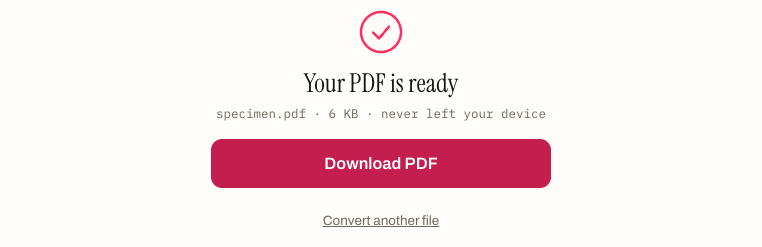
A text-only book barely grows in conversion. Where the sizes diverge — and where the formatting questions in this post begin — is images, fonts, and the page-size decisions below.
Why the output can look wrong
An EPUB has no page size. The text is a single continuous stream, and your reading app decides where to break it. A PDF has to commit: every line break is baked in at export. So the converter is not preserving a layout — it is inventing one, using the trim size and margins you give it.
Give it bad numbers and you get bad pages. Give it sensible ones and it looks typeset.
Pick the page size first
A4 and Letter are wide. At a normal body size that gives you 90–100 characters per line, which is well past the point where the eye starts losing its place on the return sweep. That is the single most common reason a converted PDF “feels off” — the lines are simply too long.
6×9 inches is the standard trade paperback trim. It produces roughly 65–75 characters a line, which is the comfortable range, and it is why the same book converted at 6×9 reads so much better than at A4.
Then the margins
Margins are the other half of the line-length equation.
| Setting | Adds | Use it when |
|---|---|---|
| Narrow | 0.5in | You want fewer pages, or you’ll print two-up |
| Medium | 0.75in | Almost always — this is the default |
| Wide | 1.25in | You want room to annotate, or a 6×9 novel |
On A4, Wide margins pull the line length back down into the comfortable range, which makes it a genuinely good pairing. On 6×9, Wide can leave the text block looking cramped — Medium usually wins there.
What actually carries over
Headings, paragraphs, block quotes, lists and images all survive, and the EPUB to PDF converter starts each chapter on a fresh page the way a printed book does. The text stays real text, so it is selectable and searchable in the finished PDF.
What does not carry over is the book’s own CSS — custom fonts, decorative drop caps, precise spacing. A PDF built from an EPUB is a clean typesetting of the content, not a screenshot of how one particular app displayed it.
If the file is enormous
Image-heavy books can produce very large PDFs. Run the book through the EPUB Compressor first: it re-encodes the images and leaves the text untouched, which usually halves the size with no visible difference on a screen.
What the converter is actually doing
It helps to know that nothing is being “preserved” here in the way people expect. Your EPUB is a set of XHTML documents with a stylesheet; the converter parses that structure into a stream of typographic blocks — headings, paragraphs, block quotes, list items, images — and then lays those blocks onto pages of the size you picked.
That is why the result is a genuine typesetting rather than a screenshot. The text in the finished PDF is real text: selectable, searchable, and copyable. If you open it and try to select a sentence, you will get a sentence, not a rectangle of pixels. Converters that rasterise pages — which is what most “print to PDF from a reader app” routes do — produce files several times larger where none of that works.
The trade-off is that the book’s own CSS is not carried across. Custom fonts, decorative section breaks, precise margins around pull quotes: those are properties of one particular rendering of the book, and they do not survive the trip.
Getting a book-like result
If your goal is something that reads like a printed novel rather than a printout of a website, four settings do almost all the work:
- 6×9″ trim. This is the standard trade paperback size and it is the single biggest factor.
- Medium margins. Wide will squeeze the text block uncomfortably at this trim.
- Let chapters break naturally. Each chapter starts on a fresh page automatically, the way a printed book sets them.
- Check the first page after converting. If the opening paragraph looks cramped, you are usually one margin setting away from fixing it.
For a study or reference document the priorities invert: A4 or Letter with Narrow margins fits more on each page and costs less to print.
The three things that genuinely go wrong
Scanned or image-only EPUBs. Some EPUBs are just a wrapper around page images — comics, some public domain scans. There is no text to typeset, so the output will be images at whatever size fits. That is expected, not a bug.
Very long unbroken paragraphs. A paragraph that runs for two pages will not break the way you might want. This is a property of the source, and it shows up in every reader too.
DRM. Encrypted books cannot be opened by any converter. If the file came from a store and you did not strip DRM yourself, this will fail at the first step.
After converting
If the PDF is much larger than you expected, the images are the reason. Run the source EPUB through the Compressor first and convert again — the text stays byte-for-byte identical and the file usually halves.
And if what you actually wanted was a better-looking ebook rather than a fixed page, convert nothing at all: open the book in Style Studio and re-typeset it. Changing the typeface and line length takes seconds and does not lock you out of reflowing later.
How to convert an EPUB to PDF without losing formatting
- 01 Pick the page size firstA4 or US Letter if you are printing at home or the office; 6×9″ if you want something that reads like a novel on screen or from a print shop.
- 02 Then set the marginsMedium is the default that almost always works. On A4, Wide pulls the line length back into the comfortable range; on a 6×9 trim it can cramp the text block, so Medium usually wins there.
- 03 Convert and check the first pageChapters break onto fresh pages automatically. If the opening paragraph looks cramped, you are usually one margin setting away from fixing it.
- 04 Compress first if the file comes out enormousImage-heavy books produce large PDFs. Run the source EPUB through the compressor and convert again — the text stays identical and the file usually halves.
Frequently asked questions
Why do the lines in my converted PDF feel too long to read?
Because A4 and Letter pages are wide: at a normal body size they give you 90–100 characters per line, which is past the point where the eye loses its place on the return sweep. Convert at a 6×9″ trim for 65–75 characters a line, or keep A4 and switch to Wide margins to pull the measure back in.
Is the text in the converted PDF selectable and searchable?
Yes. The converter typesets your book's actual text onto pages, so the result is real text you can select, search and copy — not a screenshot. Converters that rasterise pages, which is what most print-to-PDF routes from reader apps do, produce far larger files where none of that works.
Why is the PDF so much bigger than the EPUB was?
Images. A text-only book barely grows — our specimen EPUB went from 5,183 bytes to a 5,906-byte PDF — so a dramatic jump means image weight. Run the source EPUB through the compressor first and convert again; the images are re-encoded, the text is untouched, and the file usually halves.
Why did my EPUB convert to pages of images with no real text?
Because the EPUB itself is image-only — some books, especially comics and public-domain scans, are just a wrapper around page images. There is no text to typeset, so the output is those images at whatever size fits the page. That is expected behaviour, not a conversion bug.
Why won't the converter open my EPUB at all?
Almost always DRM. Books bought from a store are usually encrypted, and an encrypted file cannot be opened by any converter, so the job fails at the first step. Only DRM-free files — your own books, DRM-free purchases, public-domain texts — will convert.