EPUB blank pages: where they come from, how to remove them

Blank pages in an EPUB are a complaint with remarkable staying power. MobileRead’s forums have carried some version of it for over a decade — blank pages between chapters, a blank page after the cover, every other page blank in landscape — and the same reports recur on Calibre’s bug tracker, in Adobe’s InDesign community, and in Goodreads’ self-publishing groups. The book reads fine, except that turning past a chapter’s end sometimes lands on nothing, and the contents menu insists the nothing is not there.
The reason the complaint never dies is that people hunt for the blank page in the book, and it is not in the book. A reflowable EPUB contains no pages at all — no page boundaries, no page count, nothing to be blank. Pages are manufactured by the reading app at display time, cut to fit your screen and your font size. An EPUB blank page is a screen the app manufactured and then found nothing to put on. So the question is never “where is the blank page stored?” — it is “what made the app cut a screen it could not fill?” That has a short list of answers, and you can check every one of them against the file.
Pages are cut per file, and that is most of the story
Under the covers an EPUB is a zip archive of chapter files, usually one XHTML file per chapter, plus a package file — content.opf — whose spine lists those files in order. The EPUB specification is plain about what the spine is: an ordered list of manifest item references that represent the default reading order. The spec stops there. How that reading order becomes pages is the app’s business.
Paged reading apps share one convention: each spine file is paginated on its own, and every file starts on a fresh screen. A chapter can never begin on the bottom half of the previous chapter’s last screen — the file boundary is a hard page break. That convention is why a printed-book feel survives font-size changes, and it has an unavoidable corollary: every file in the spine costs at least one screen, even a file with nothing in it.
To watch the corollary at work, we built a three-chapter test book for this post — blankbook.epub, 3,661 bytes — and slipped a fourth file into its spine: blank.xhtml, 238 bytes, a well-formed XHTML document whose body is empty. The navigation document lists three chapters; the spine lists four files. Paged through a minimal paged viewer we built in Chromium — content flowed into fixed 320 × 500 screens, each spine file flowed separately, the same model paged apps use — the book comes out at four screens instead of three, and the extra one sits exactly where a reader would meet it:
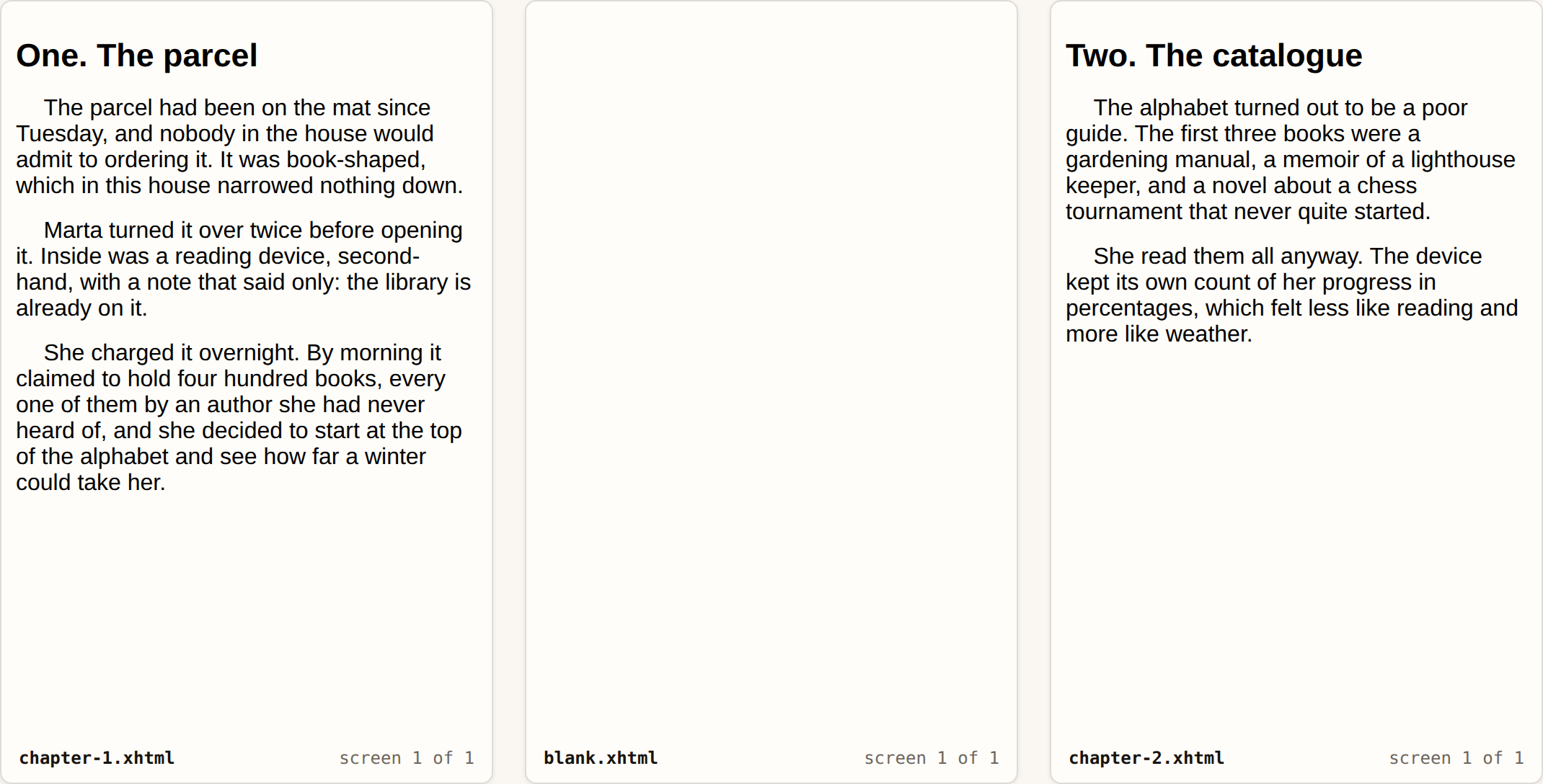
Nothing about the blank screen is broken. The file is valid XHTML, the archive is a valid EPUB, and the app is following the file-per-screen convention faithfully. The blank is the truthful rendering of an empty file.
Where the empty files come from
Nobody writes an empty chapter on purpose. The stray files are manufactured too — usually by a converter slicing a manuscript into chapter files.
The common recipe is a document whose headings sit closer together than the converter expects. Our own DOCX converter splits a manuscript into one file per Heading 1, which is the standard approach — and it means two consecutive Heading 1 paragraphs produce a file containing a heading and nothing else. That is precisely the shape of a manuscript with a title page: the book’s title styled as Heading 1, then “Chapter One” styled as Heading 1 right below it.
We reproduced it for this post with a 2,167-byte Word file built exactly that way. Through the live converter it became a 3,713-byte EPUB whose first spine file, chapter-001.xhtml, is 362 bytes and holds a single line of content:
<body>
<h1>The Second-Hand Library</h1>
</body>
In a paged app that file is a screen carrying one line of text — and where the heading styling is minimal, a screen that reads as blank. The next two chapter files, 659 and 532 bytes, hold the actual prose. Multiply the pattern across a manuscript that uses Heading 1 for part titles, dedication lines, or scene markers, and you get the classic report from a decade of forum threads: a blank or near-blank page in front of every chapter. The fix belongs in the manuscript — demote the extra headings so only real chapter openings carry the splitting style, then convert again.
The other manufacturing route is CSS. Publisher stylesheets often carry page-break-before: always on chapter headings, a rule written for the days when several chapters shared one file. Once a converter splits chapters into separate files, the rule becomes redundant — the file boundary already breaks the page — and in a renderer that applies it literally at the top of a fresh file, redundant becomes visible: break to a new page, then break again, leaving a blank between. Being honest about our own evidence: our blankbook.epub stylesheet carries exactly that rule on h1, and the Chromium harness collapsed it — the break at the top of an already-fresh screen did nothing. Engines differ here, which is why this one shows up in some apps and not others. Treat the break rule as the second suspect, after empty files, not the first.
The blanks that live in the app, not the book
One variant needs no stray file at all: every other page blank, usually in landscape or on a tablet, reported for years about two-page views. That is the file-per-screen convention meeting arithmetic. In a facing-pages view, a chapter that fills an odd number of screens leaves its facing page empty, because the next file must start fresh. About half of all chapter boundaries will land odd, so the book appears riddled with blanks — none of which exist in portrait, in scrolling view, or in the file. If a blank disappears when you change the view, you have already diagnosed it: it was pagination parity, and no amount of editing the book will remove it, because there is nothing to remove.
Finding and removing a stray blank
When the blank survives a view change, it is a file, and you can find it in a few minutes without special software. This is the order that wastes the least time:
- Confirm it is in the book. Switch to a single-page or scrolling view, or open the book in a second app. A blank that vanishes was parity — stop here.
- Open the archive. Rename a copy of the book from
.epubto.zip, extract it, and opencontent.opf. The<spine>element’sitemreflines are the true page order — the one the reader walks, not the one the contents menu shows. - Check what the contents list skips. Put the spine next to the navigation document (
nav.xhtmlin most books). A file present in the spine but absent from the navigation is the prime suspect; open it and look at its body. In our fixture the culprit announces itself — a body with nothing between the tags. - Remove or refill, then repack. Delete both the file and its
itemrefline — or give the file real content if it was meant to hold some — then zip the folder back into an EPUB and validate the result. The repack has one sharp edge (themimetypeentry must go in first, uncompressed), which the post on editing EPUBs at source level walks through, along with the editor that does the repacking for you.
A table for the triage, since the same symptom has four sources:
| Symptom | Source | The test |
|---|---|---|
| Blank after one specific chapter | An empty file in the spine | It survives view changes; the file is in the spine, not the navigation |
| Blank or title-only page before every chapter | Converter split on consecutive headings | The near-empty files sit at each chapter boundary; fix the manuscript, reconvert |
| Blanks in some apps, absent in others | A redundant page-break-before rule | The stylesheet carries the rule; engines disagree on the doubled break |
| Every other page blank in two-page view | Pagination parity | It vanishes in single-page or scrolling view |
What a validator will and will not tell you
It is tempting to throw the book at a validator and expect the blank page to be flagged. It will not be, and the reason is worth knowing: an empty spine file breaks no rule. We ran blankbook.epub — empty file and all — through the EPUB validator on this site, and it reported exactly what the specification obliges it to report:
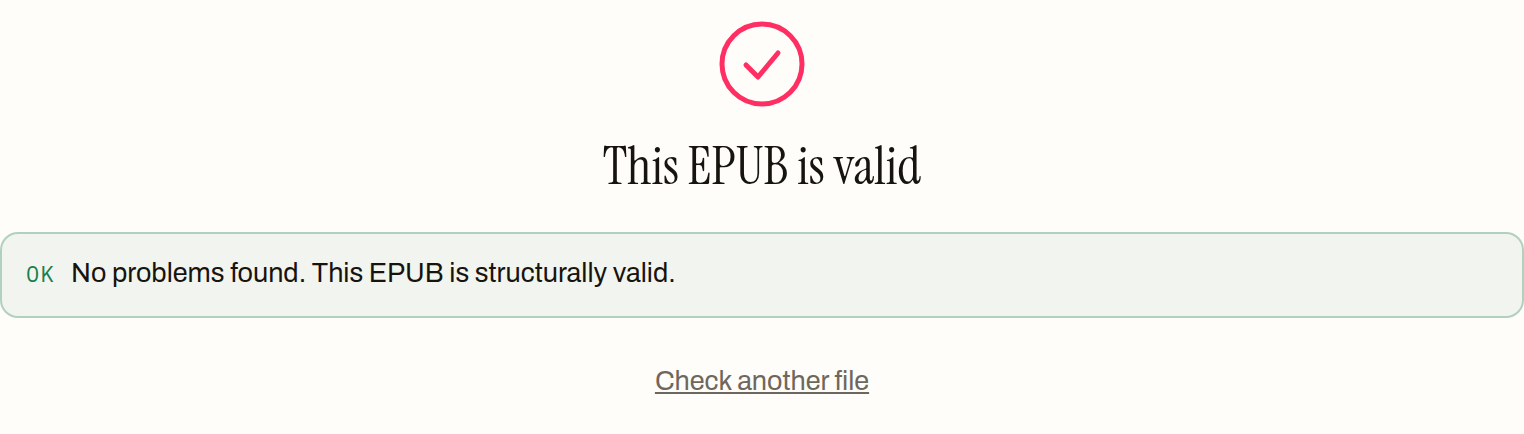
So the validator’s role in this repair is the last step, not the first: it confirms your repack holds together, it does not hunt blanks. (A chapter that renders blank because its markup will not parse is a different fault with a different fix — that one lives in the post on EPUB compatibility problems.)
One more data point from this run, because it answers a question people reach for next: what happens to the blanks on paper? We converted blankbook.epub through the site’s EPUB to PDF converter, which starts each chapter on a fresh page the way a printed book does — but skips the fresh page when the previous file placed nothing on it. The book with the empty spine file and the control copy without it both came out as the same three-page, 4,888-byte PDF. The blank that haunts the paged view simply is not there to print, which makes a PDF conversion a serviceable way to hand the book to someone before you get around to the real repair. The screen was always the app’s invention. Now you know which of its inventions to keep.
How to find and remove a stray blank page
- 01 Confirm the blank is in the book, not the viewSwitch the app to a single-page or scrolling view, or open the book in a second app. A blank that disappears was two-page parity, not a file.
- 02 Open the archive and read the spineRename a copy from .epub to .zip, extract it, and read the itemref list in content.opf — that is the book's real page order, including files the contents menu never shows.
- 03 Open the files the contents list skipsCompare the spine against the navigation document and open whatever appears only in the spine. A file whose body is empty or holds a single heading is the blank.
- 04 Remove or refill it, then repack and validateDelete both the file and its itemref line — or put real content in it — then zip the folder back into an EPUB and run it through a validator to confirm the repack.
Frequently asked questions
Why does my EPUB have a blank page between every chapter?
Almost always because every chapter lives in its own file and something put a near-empty file, or a redundant page-break rule, at each boundary. A converter that splits on headings will happily emit a file holding nothing but a heading, and each one costs a screen. If the blanks appear between every chapter rather than after one specific spot, suspect the converter's splitting rather than a single stray file.
Do blank pages mean my EPUB is corrupted?
No. A blank page is structurally legal: an empty XHTML file is well-formed, and a spine is allowed to point at it. Our test book with a deliberately empty spine file came back from the validator with no problems found. Corruption looks different — chapters that fail to open or a book that is rejected outright.
Why do I see the blank page in one app but not another?
Because the page is manufactured at display time, and apps paginate differently. A paged view gives every spine file at least one fresh screen, so an empty file gets a visible blank; a continuous scrolling view collapses that same file to nothing. The book is identical in both — only the pagination differs.
Why is every other page blank in two-page or landscape view?
Parity. In a facing-pages view each chapter file still starts on a fresh screen, so when a chapter fills an odd number of screens the facing page stays empty. Roughly half of all chapter boundaries land that way, which reads as blanks alternating through the book. Drop to a single-page view and they vanish, because they were never in the file.
Will the blank pages survive converting the book to PDF?
It depends on how literally the converter treats empty files, so test it. The converter on this site starts each chapter on a fresh PDF page but skips the fresh page when nothing has been placed yet — our test book produced a three-page PDF with the empty file exactly as without it. A converter that paginates naively will print the blank instead.
Why does the table of contents not show the page my reader stops on?
The contents menu and the page order are two different lists. The navigation document holds the entries a reader should see; the spine holds every file in display order. A stray file usually sits in the spine but not in the navigation, so the reader walks through it while the contents menu pretends it does not exist. That mismatch is itself the tell.