How to edit an EPUB file: match the tool to the edit

“How do I edit an EPUB file?” is really four different questions wearing one coat. Sometimes the book says Unknown where the author’s name should be. Sometimes the cover is wrong, or missing. Sometimes the type is too small and the margins too mean. And sometimes there is a sentence in chapter four that needs to say something else.
Each of those is a different edit, made to a different file inside the book, and the right tool depends entirely on which one you mean. Picking the wrong tool is how a thirty-second fix turns into a book that will not open.
An edit is a rewrite of one file inside the archive
An EPUB is a ZIP archive of ordinary files: chapter markup, a stylesheet, images, and one package document — usually content.opf — that holds the book’s title, author and reading order. Editing the book means rewriting one of those entries and repacking the archive around it.
That is not a metaphor. For this post we took our five-chapter specimen book, whose author field genuinely reads Unknown, ran it through our metadata editor, and compared the archives entry by entry. The input:
$ unzip -l specimen.epub   (5,183 bytes total)
      251  META-INF/container.xml
      364  OEBPS/chapter-001.xhtml
      845  OEBPS/chapter-002.xhtml
      905  OEBPS/chapter-003.xhtml
      618  OEBPS/chapter-004.xhtml
      573  OEBPS/chapter-005.xhtml
     1314  OEBPS/content.opf
      682  OEBPS/nav.xhtml
      452  OEBPS/style.css
      986  OEBPS/toc.ncx
       20  mimetype
After the edit, exactly one number in that listing had moved: content.opf went from 1,314 bytes to 1,371, carrying the corrected author and a new publisher line. All five chapters, the stylesheet, the navigation files — byte-for-byte identical. The archive as a whole grew just 28 bytes, less than the package document did, because entries are compressed when the book is repacked.
That is the property that makes some edits safe and others risky. A metadata fix touches one small XML file. A text fix rewrites the chapter markup your reader renders — far more surface to break.
Which edit do you actually want?
| You want to change | Where it lives | The right tool |
|---|---|---|
| Title, author, language, publisher | content.opf, the package document | Metadata editor, in the browser |
| The cover image | An image entry plus its manifest flag | Cover editor, in the browser |
| Font, size, spacing, margins | The stylesheet | Style Studio, in the browser |
| The text itself | Chapter XHTML files | Calibre’s editor or Sigil, on the desktop |
The first three are structured edits: the tool knows exactly which entry to rewrite and leaves the rest of the book alone. The last one is freehand, and that difference is the whole story of this post.
The browser edits, run for real
The metadata run above went like this. Drop the book on the metadata editor and it reads the package document and pre-fills a form — for the specimen it showed Specimen, Unknown, en, and an empty publisher, which is what the file really says, not what any store listing claims. We typed a proper name into the Author field, added a publisher, and applied it.
Unzipping the download confirms the fix took: <dc:creator>Ursula Specimen</dc:creator>, with a <dc:publisher> line that was not there before. This is the edit to reach for when a book files itself under Unknown on your reader’s shelf — that shelf entry is rendered from these fields.
The cover editor works the same structured way with the book’s cover: it overwrites the existing cover image in place, so the manifest entry that points at it stays valid — or, if the book never declared a cover, adds the image and the manifest flag readers look for. And Style Studio handles the third row: it rewrites the book’s stylesheet to your chosen typeface, size and spacing — embedding the font if you ask — and repacks the result. All three run entirely on your machine; the book is never uploaded anywhere.
The text itself: use a real editor, not a zip tool
Chapter text is where we stop recommending the browser, including ours. The chapters are XML documents, and a one-word fix that leaves a tag unclosed produces a book that strict readers refuse outright. Text edits deserve a tool that understands the container: Calibre’s built-in editor and Sigil both open the EPUB directly, let you edit the markup with the structure visible, and repack the archive correctly on save.
What you should not do is the tempting thing — rename to .zip, extract, edit, zip it back up. It can be done, but the container format has a strict rule about how the archive is packed, general-purpose zip tools do not follow it, and the resulting file looks fine right up until a device rejects it. We measured exactly how that goes wrong in fixing a typo in a published ebook, which walks the manual route with the byte offsets to check if you insist on it.
Being realistic about the split: a browser tool doing structured edits cannot mangle your chapters, because it never parses them. A freehand editor can fix anything and therefore can break anything. That is not a flaw in either tool — it is the trade you are choosing between.
Check your work, whichever route you took
Every edited book should pass a validator before it goes back on a device or up to a store. Here is our edited specimen doing exactly that:
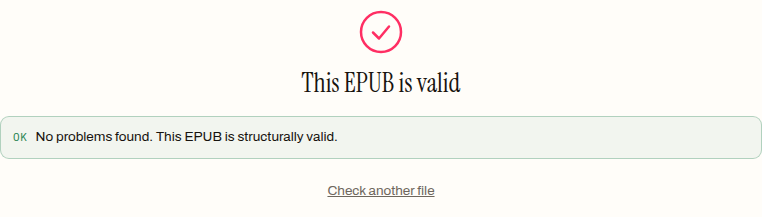
The validator checks the failures that actually get files rejected — the container pointer, whether the package document still parses, whether everything the manifest lists exists in the archive. Ten seconds, and it catches precisely the class of damage an edit can cause.
So: name the edit before you pick the tool. Shelf details wrong — the metadata editor fixes them in the browser in under a minute, and you have now seen the entire extent of what it changes. Cover or styling — same structured story. The words themselves — Calibre or Sigil, then a validation pass, and the book is honestly better than it was.
Frequently asked questions
Can I edit an EPUB without installing anything?
For three of the four common edits, yes. Metadata, cover and styling changes are structured edits to small, self-contained files inside the archive, and the browser tools on this site make them without the book leaving your machine. Editing the text itself is the exception — that job belongs in a desktop editor like Calibre or Sigil, which understands the chapter markup it is rewriting.
Why shouldn't I just unzip the EPUB, edit it, and zip it back up?
Because the container format has a strict rule about how the archive is packed, and general-purpose zip tools do not follow it. The rezipped book looks fine right up until a device rejects it. Editors that understand the container — Calibre's editor, Sigil — repack the archive correctly on save, which is the whole reason to use one instead of a zip utility.
Will fixing the metadata change anything else in the book?
No. A structured metadata edit rewrites only the package document. In the run measured for this post, content.opf grew from 1,314 to 1,371 bytes to carry the corrected author and a new publisher line, while all five chapters, the stylesheet and both navigation files stayed byte-for-byte identical.
Why does my reader shelve a book as Unknown, and where is that fixed?
The shelf entry is rendered from the metadata fields inside the book's package document, not from the file name or any store listing — if the creator field says Unknown, that is what the shelf shows. Correcting the author with a metadata editor rewrites that one field, and the shelf entry follows the next time the book is loaded.
Can a browser-based edit corrupt my book?
A structured edit cannot mangle your chapters, because the tool never parses them — it rewrites one known file and repacks the rest of the archive untouched. Freehand text editing is where the risk lives: one unclosed tag in a chapter produces a book that strict readers refuse outright. That asymmetry is why text edits get a desktop editor, and every edited book gets a validation pass.