How to print an EPUB (without printing the whole book)

Open an EPUB in almost any reading app and look for the Print command. It is not there. The question of how to print an EPUB keeps surfacing on Quora and the hardware forums, and the answers on offer are consistently worse than the problem: install a desktop suite for a one-off job, or — the first tip in one guide that ranks for this question — start by stripping the book’s DRM, which is not something this site will ever walk you through.
The honest route is shorter than either.
Why there is no Print button
An EPUB is a continuous stream of text with no pages in it — which is exactly why EPUBs have no page numbers. Your reading app breaks that stream wherever the screen happens to end, and breaks it somewhere else the moment you change the font size.
A printer cannot work with that. A print job is a stack of fixed sheets, each one committed in advance. So before an EPUB can reach paper, something has to invent pages: decide the sheet size, the margins, where every line breaks and where every chapter starts. That is not printing — that is typesetting, and it is precisely what an EPUB-to-PDF conversion does. Where a reading app does offer printing, it is quietly doing the same conversion behind the dialog.
Which is why the reliable route is to do the typesetting deliberately, look at the result, and only then spend the paper.
Printing an EPUB is really printing a PDF
The whole job is three steps.
Convert at your paper size. Drop the book into our EPUB to PDF converter and set the page size to match the paper you will print on — A4, or US Letter in North America. The 6×9″ option exists for making screen-readable book pages, not for office printers. Here is the converter finishing a real run on our five-chapter specimen book (5,183 bytes in, specimen.pdf out):
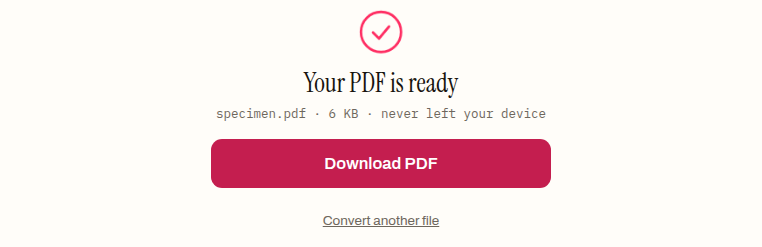
That output is a five-page A4 PDF of 5,906 bytes — one page per chapter, because each chapter starts on a fresh sheet the way a printed book sets them. The text is real, selectable text, not screenshots of an app. The conversion happens in your browser; the file never uploads anywhere.
Check it on screen first. Open the PDF and skim the first pages. If the lines feel too long or the text block sits oddly on the sheet, adjust margins and convert again — it costs seconds, unlike reprinting. The settings that decide how the pages look are covered in their own post; the two-sentence version is that Wide margins tame A4’s long lines, and Medium is the safe default.
Print the PDF. Use any PDF viewer’s print dialog. Everything you would expect from printing a normal document now works, because it is a normal document: page ranges, double-sided, two pages per sheet.
Print one chapter, not the whole book
Most printing jobs are not really “print this book”. They are print the recipe, the pattern, the chapter the reading group is on. Feeding a whole novel to an office printer to get at one section is the expensive way to do it.
Two ways to avoid that. The quick one: convert the whole book and print a page range from the PDF dialog. The clean one: run the book through the EPUB splitter first. We ran the specimen through it during this post — set to one chapter per file, it returned a ZIP of five small EPUBs (specimen-part-01.epub through -05.epub), each a self-contained book. Convert the one part you need and the resulting PDF is the excerpt — no hunting for page numbers, and the page count on the printer’s meter matches what you meant to spend.
The arithmetic favours doing this. An A4 sheet carries far more text than a paperback page, double-siding halves the sheets again — but a full-length novel still runs to a thick stack of paper and most of an ink cartridge. For one book printed once, a second-hand paperback is often the cheaper printer.
The permissions question, honestly
Printing a DRM-free book you bought, for your own use, is the ordinary case print dialogs exist for — the same as printing any document you own.
Two hard edges. A DRM-protected file from a store will not open in this converter or any other; the lock is the point, that is what DRM is, and removing it is not something we help with. And a printed copy is a copy: running off a class set of a book still in copyright is a licensing question for the publisher, not a printer-settings question.
When printing will disappoint
Image-only EPUBs. Scanned public-domain books and comics are pictures of pages inside an EPUB wrapper. They will print as those pictures, at whatever quality the scan has — no conversion can add sharpness that is not in the file.
The book’s own typography. A converted PDF is a clean re-typesetting, not a facsimile: custom fonts and decorative flourishes from the original do not carry over. For reading on paper that is usually an improvement. If you wanted the look of the book, print from screenshots is the only faithful route, and it is a bad one.
Very image-heavy books. The PDF can come out large and slow to spool. Nothing is wrong; that is the images’ weight moving from one container to another.
For everything else — the recipe, the chapter, the pattern, the study text you want to scribble on — convert the EPUB to a PDF at your paper size and print it. The paper does not know the book started life without pages.
How to print an EPUB
- 01 Convert the EPUB to PDF at your paper sizeDrop the book into the EPUB to PDF converter and set the page size to the paper in your printer — A4, or US Letter in North America. Each chapter starts on a fresh sheet, and the output is real, selectable text.
- 02 Check the PDF on screen firstOpen the PDF and skim the first pages. If the lines feel too long or the text block sits oddly on the sheet, adjust the margins and convert again — it costs seconds, unlike reprinting.
- 03 Print the PDF from any viewerIt is a normal document now, so everything you expect from a print dialog works: page ranges, double-sided, two pages per sheet.
Frequently asked questions
What paper size should I pick when converting an EPUB for printing?
Match the paper in your printer — A4 in most of the world, US Letter in North America. The 6×9″ option exists for making screen-readable book pages, not for office printers. If A4's long lines feel unwieldy on screen, Wide margins tame them; Medium is the safe default.
How do I print just one chapter of an EPUB?
Either convert the whole book to PDF and use a page range in the print dialog, or split the EPUB into per-chapter files first and convert only the part you need. The split route is cleaner: each chapter becomes a self-contained book, so the resulting PDF is exactly the excerpt and the printer's page count matches what you meant to spend.
Is it legal to print an EPUB I bought?
Printing a DRM-free book you own, for your own use, is the ordinary case print dialogs exist for — the same as printing any document. A DRM-locked store file will not open in a converter at all, and running off multiple copies of a book still in copyright is a licensing question for the publisher, not a printer-settings question.
How many pages will my EPUB be when printed?
There is no answer until you convert, because an EPUB has no pages of its own — the PDF conversion invents them at your chosen paper size. An A4 sheet carries far more text than a paperback page and double-siding halves the sheets again, but a full-length novel still runs to a thick stack; converting first shows the exact count before you spend any paper.
Why does my printed comic or scanned book look blurry?
Because image-only EPUBs — scanned public-domain books and comics — are pictures of pages inside an EPUB wrapper, and they print as those pictures at whatever quality the scan has. No conversion can add sharpness that is not in the file.